WordPress Pinterest Automation
You already have the articles. PinLaunchr's WordPress plugin tells you which of them Pinterest actually wants, turns those into designed pins, and puts new posts on autopilot — pins generated and scheduled the moment you hit Publish.
The plugin is free and GPL-licensed. It is a client for your PinLaunchr account — the account is what does the analysis, generation and publishing.
What the integration actually does
Most “WordPress to Pinterest” plugins do one of two things: they add a hover-to-save button to your images, or they push an RSS feed at Pinterest and hope the featured image works as a pin. Neither makes a pin. They just relocate one.
This plugin does something different. It reads your published library, scores every post 0–100 for Pinterest potential with a plain-English explanation of why, and lists the distinct pin angles each post can support. You pick a post, choose how many pins you want, and PinLaunchr writes the titles, descriptions, keywords and alt text and designs the pin creatives — then hands them to your Pinterest schedule.
Turn Autopilot on and the whole sequence happens on publish, without you opening the plugin at all.
So it is a Pinterest WordPress plugin in the literal sense — it installs from a .zip, lives in your admin menu and is GPL-licensed — but it behaves as a WordPress Pinterest scheduler with a writer attached, rather than a share-button widget. Everything it schedules goes to the same review queue as pins made anywhere else in PinLaunchr, which is the line that keeps Pinterest automation for WordPress on the right side of Pinterest's rules: software prepares the pins, a person approves them, and publishing happens through the official API.
Who this is for
- You run a WordPress blog or content site with a real archive — dozens or hundreds of published posts you have never pinned properly.
- You publish regularly and want each new post on Pinterest without adding a manual step to your routine.
- You do not want to open a design tool. The pin images are generated, not assembled from your photos.
- You are on ordinary shared hosting. The work runs in small batched jobs, not one long request that times out.
- You publish fewer than about twenty pins a month. Pinterest's own free scheduler and the free Pinterest tools cover that comfortably.
- You want a save button on your post images. That is a different kind of plugin, and Pinterest publishes its own.
- You want every pin hand-designed from your own photography. The generated creatives are a starting point, editable in the designer — but they are generated.
- You are not on WordPress. Paste your post URLs instead — see the Pinterest tool for bloggers.
WordPress → PinLaunchr, step by step
Five steps, and only the first three need you.
Install the plugin
Upload the ZIP through Plugins → Add New → Upload Plugin, or drop the folder into /wp-content/plugins/. Requires WordPress 5.8+ and PHP 7.4+.
Connect your account
Click Connect PinLaunchr in Settings. A PinLaunchr tab opens; you approve this site and pick the workspace its pins belong to. No API key is ever pasted — the handshake uses a short-lived, single-use code, and you land back on the plugin's Settings screen already connected.
Scan your site
Press Scan my website. Every published post is scored 0–100 for Pinterest potential, in background batches of twenty, with the reasoning and the pin angles it supports. Unchanged posts are never re-scored.
Generate the pins
Pick a post — or select many and bulk-generate — and choose 3, 5, 8, 10 or 15 pins per article. PinLaunchr writes the title, description, keywords and alt text for each and designs the creative.
Publish on a schedule
Choose a board and spread the pins across 7, 14, 30, 60 or 90 days. PinLaunchr publishes them to your connected Pinterest account through the official Pinterest API.
Inside your WordPress admin
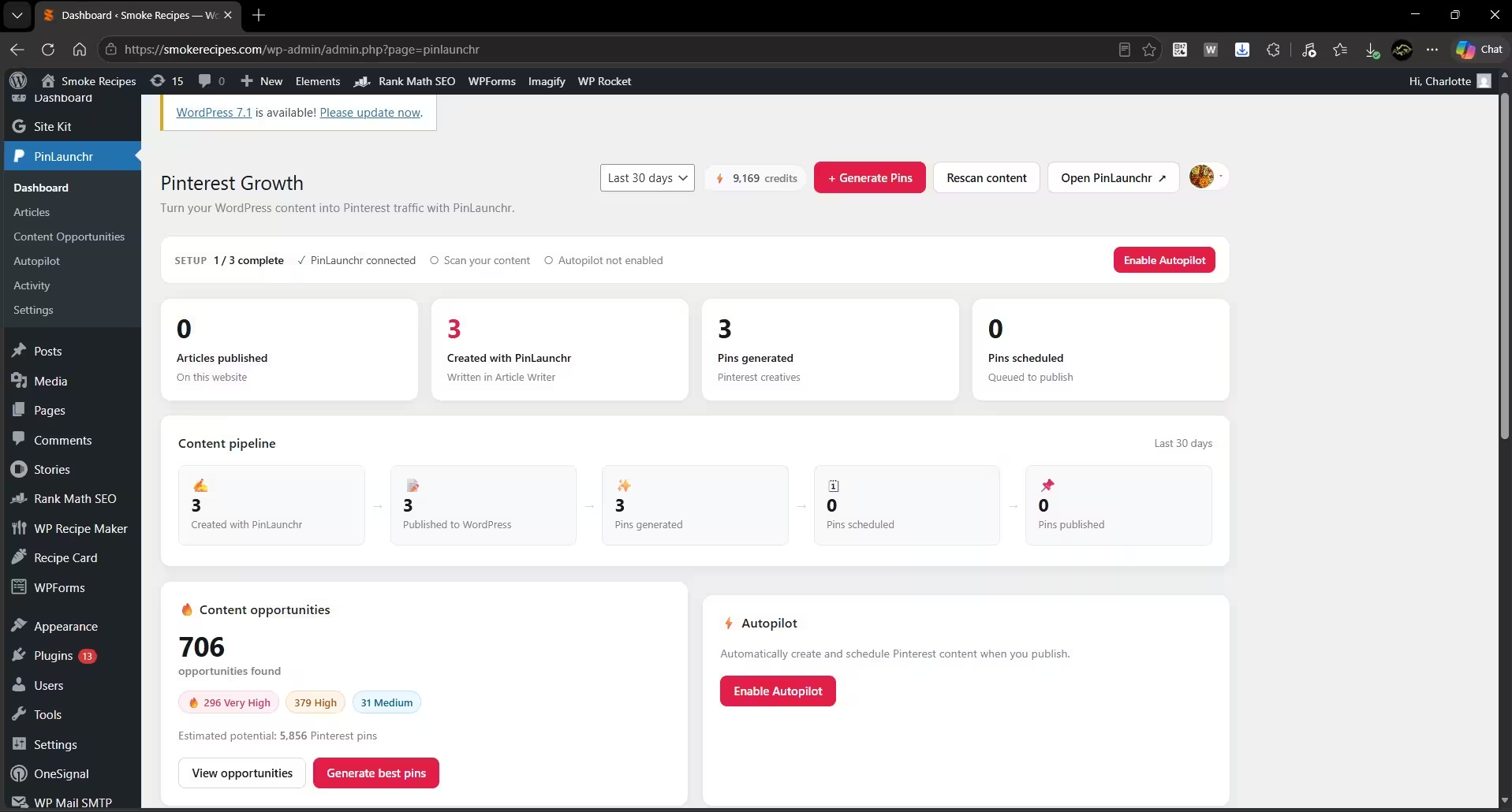
Auto-pin WordPress posts on publish
Autopilot is the part that removes the routine entirely. Once it is on, publishing a post is the only action you take:
- A minimum score. Set the bar at 60, 70, 80 or 90. Posts below it are left alone rather than turned into pins nobody will save.
- Pins per article. 3, 5, 8, 10 or 15 — one per distinct angle the analysis found.
- A board and a spread. Pick where they go and over how many days, and the scheduler handles the rest.
- First publish only. Autopilot never fires on an update. Editing a published post cannot create a second campaign, and every generation request carries an idempotency key, so a retry or a double-click cannot duplicate pins.
There is also a Pinterest panel in the block editor and a meta box for the Classic Editor, so you can see a post's score and generate pins for it without leaving the editing screen.
Articles can travel the other way too
If you write articles in PinLaunchr, the plugin can publish the finished pieces straight back to WordPress — no manually created application password. Turning it on creates a standard WordPress Application Password, visible and revocable in your user profile under Users → Profile → Application Passwords as “PinLaunchr (article publishing).” It is opt-in, it is deleted when you turn publishing off or disconnect the site, and your actual WordPress login password is never sent.
Why it is built this way
- Nothing publishes unseen. Generated pins land in a review queue. Pinterest's own guidelines expect human judgment in the loop, and this is where it happens.
- Honest limits. Plan limits and credit costs are read from your PinLaunchr account and enforced on the server. The plugin's dropdowns mirror what your account actually allows — they never guess.
- Built for real hosting. Scanning and bulk runs are split into small batches with retries and a per-run time budget. A failed item fails alone; the rest of the run continues, and failures get a Retry button on the Activity screen. Credits are not charged for pins that fail.
- Non-English posts count. Post length is measured with Unicode-aware word counting, so Arabic, Greek, Cyrillic, Hebrew, Thai and CJK posts are scanned rather than silently skipped.
PinLaunchr is an independent service and is not affiliated with, endorsed by, or sponsored by Pinterest, Inc.
WordPress Pinterest Automation FAQ
Is the WordPress plugin free?
Do I have to paste an API key?
Will it automatically post my WordPress posts to Pinterest?
Will re-scanning my site charge me again?
Does it work on cheap shared hosting?
What data leaves my site?
What happens when I disconnect or uninstall?
Related
The features the plugin triggers, and the neighbouring workflows.
Put your WordPress archive on Pinterest
Subscribe, install the plugin, scan your site, and see which of your existing posts Pinterest has been waiting for.